
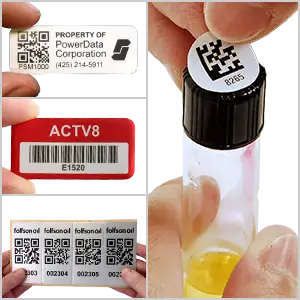
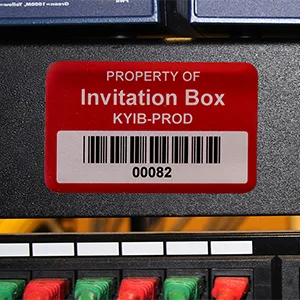
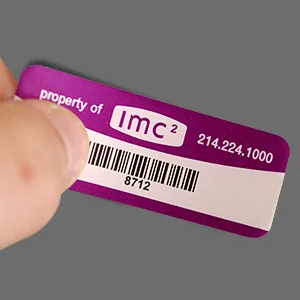
Print your own QR asset tags
Sometimes you just need a few asset tags, and you need them today. Maybe a new batch of laptops just arrived, or you’re getting ready for an audit and found a few pieces of equipment that were never tagged.
That’s when printing your own QR asset tags makes sense. You don’t have to wait for an order to arrive or pay for overnight shipping. You can print exactly as many as you need, whenever you need them, which saves both time and money.
How It Works?
Our printable QR asset tags are designed to fit Avery 5160, an industry-standard label template. You set everything up in our online design tool, then print the finished sheet on your own laser printer.

Print tags for free
Customize your tag
Start by personalizing your tag with:
- A headline and your own text, such as your company name or “Property of”
- What the QR code links to, either a web page or a plain asset number
- Sequential numbering, so every tag gets its own ID
Linking the QR code to a web page is especially useful. When someone scans the tag with their phone, it can open a service record, a user manual or a “return to owner” form.
Know your sheet size
Each Avery 5160 sheet is a standard 8.5″ x 11″ letter-size page holding 30 labels. Every label measures 1″ x 2.625″. You can use your own blank Avery 5160-compatible sheets or buy laser-printable label sheets from us.
Getting a Clean Print
The most common problem with printing your own labels is misalignment, where the design drifts off the edge of each label. A few simple steps prevent that:
- Turn off page scaling – In your print settings, choose “Actual size” or 100% instead of “Fit to page.” Scaling shrinks the design slightly, so it won’t line up with the labels.
- Do a test run on plain paper- Print one page, then hold it up against a blank label sheet to the light. If the designs sit inside each label outline, you’re good to go.
- Load the sheet correctly – Check which side your printer prints on and feed the label sheet face-up or face-down to match.
- Adjust if needed – If everything is shifted the same way, nudge the margins in your print settings and test again.
Taking two minutes to test saves you from wasting a whole sheet of labels.
Choosing the Right Label Sheets
Not every label sheet is built for the same job. Before you print, think about where the tags will end up.
Plain paper labels are the cheapest option and work fine for indoor items that don’t get handled much, like office furniture or boxes in storage. For anything that gets touched, cleaned or moved often, such as laptops, tools or shared equipment, choose synthetic sheets made of polyester or vinyl. They hold up much better against moisture, scuffs and peeling.
Whatever you choose, make sure the sheets are made for your type of printer. Laser label sheets are designed to handle the heat inside a laser printer, and using the wrong kind can smudge the print or even damage the printer.
Tips for QR Codes That Scan Every Time
These days, almost every smartphone camera reads QR codes without a separate app, which makes QR asset tags easy for anyone on your team to use. A few habits help keep them scannable:
- Print in high contrast. A dark code on a light background scans best. Avoid light grays or colored codes on colored labels.
- Leave some white space around the code. Scanners need a clear border, so keep text and graphics from crowding the edges.
- Keep the link short and stable. Shorter web addresses make simpler, easier-to-scan codes. If the page might change later, link to an address you control so you can update it without reprinting the tags.
- Scan a test label before printing the rest. Check it with a couple of different phones to make sure it opens the right page.
QR codes also have built-in error correction, so a tag with a small scratch or smudge will often still scan.
When to Order Professionally Printed Tags
Printing your own tags is perfect for small batches and last-minute needs. But self-printed labels have limits. They won’t last as long as factory-made tags, especially outdoors or in tough environments.

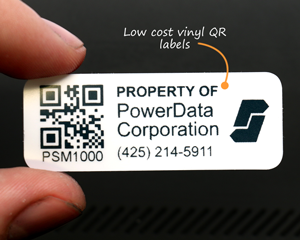
A close-up of your customized asset tag
If your tags need to survive heat, chemicals, sunlight or years of handling, it’s worth ordering professionally printed QR asset tags. We’ll customize them with your details and print them on durable materials with a stronger adhesive that keeps them in place. For the toughest conditions, anodized aluminum tags like our AlumiGuard metal asset tags keep QR codes scannable for 20 years or more.
Many teams use both: printing their own tags for quick needs, and ordering durable tags for long-term tracking. Either way, you can manage everything you tag with our free asset tracking software.
Like this topic? Check out our related products:
-

QR Asset Tags
Category: QR codes